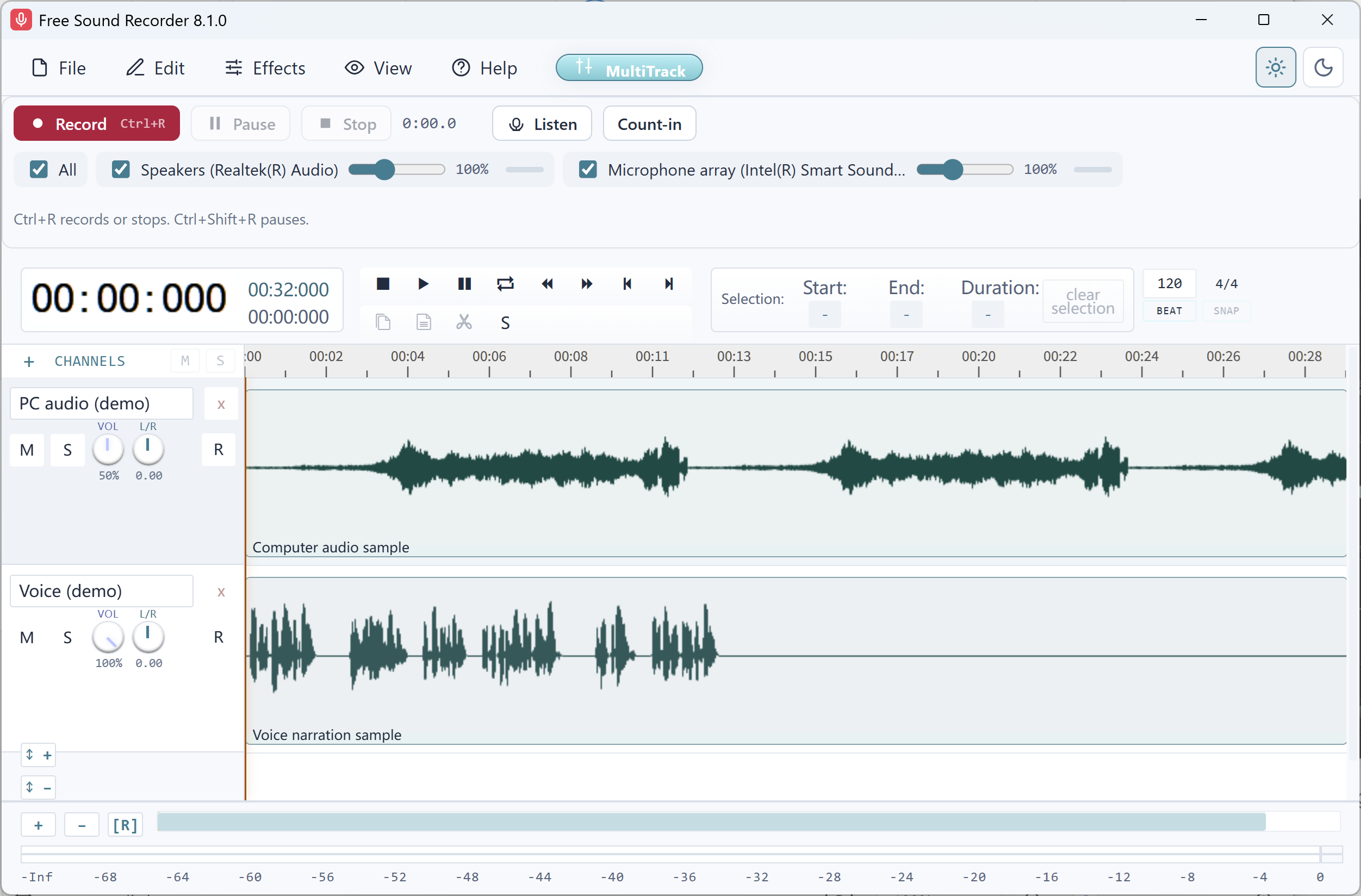
Choose the output you can hear
Play your own presentation or other material you have permission to record. Select the matching playback device in Free Sound Recorder. Leave the microphone off if you do not need a voice track.
Quiet the apps that can interrupt
Enable Do not disturb in Windows, then check the notification settings in chat, mail and browser tabs. Some applications play their own sounds even with Windows notifications silenced. Close or mute those applications individually, keeping the source material audible.
Try an interruption on purpose
During a short test, trigger a harmless notification from an app that usually interrupts you. Stop and listen to the playback track on headphones. If a chime is still audible, identify that app before starting the full take.
