
Use this when you want your own voice saved as a file. Free Sound Recorder on Windows records the microphone. Leave the speakers unchecked if you do not also want the sound playing on the computer.
1. Open the program
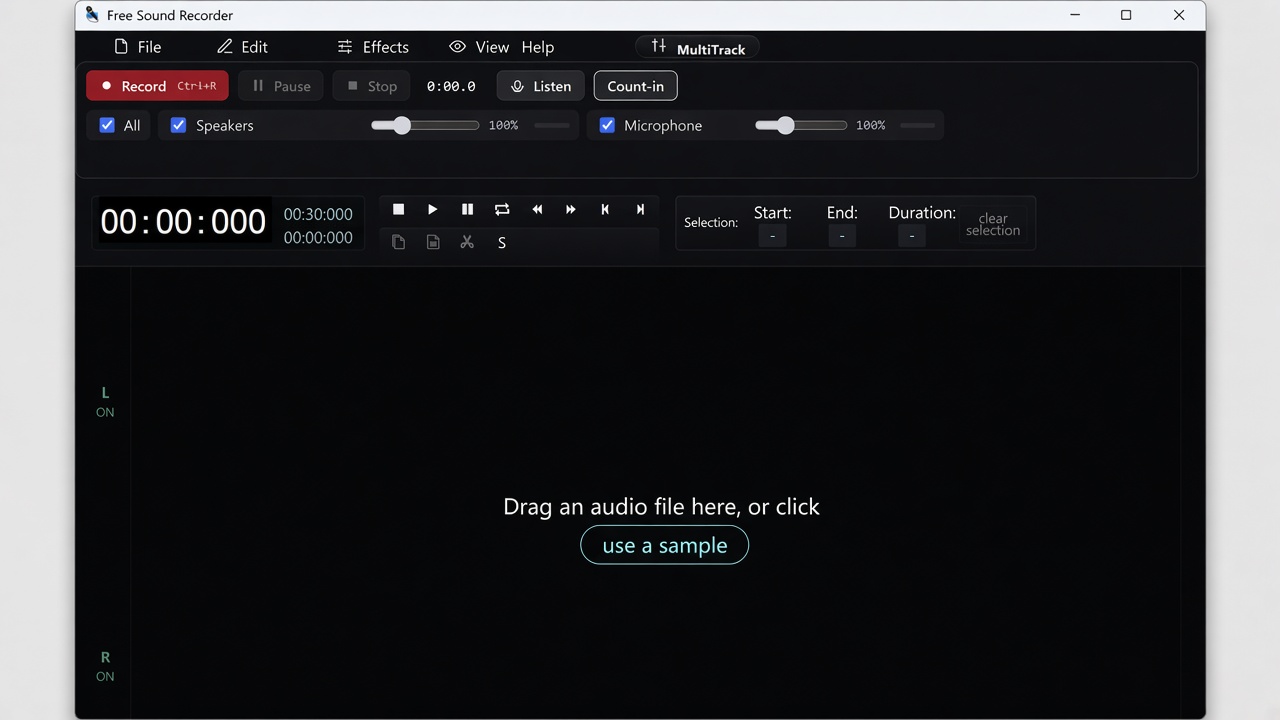
Download Free Sound Recorder and open it. The record bar is the row with Record, Pause, Stop, Listen, and Count-in.
2. Select only the microphone
On that bar, check Mic. If Speakers is also checked, click it so it turns off. Otherwise the computer audio is recorded too. All checks every input, so leave All off for a voice-only take.
If your voice is quiet, drag that microphone’s slider to the right. 100% is the starting point. The slider goes up to 300%. Double-click it to return to 100%.

3. Decide whether to count in
Count-in is on when the button looks pressed. Leave it on if you want 3, 2, 1 before the file starts. Turn it off to start the moment you press Record. The program remembers this choice.
4. Record
- Click Record, or press Ctrl+R.
- If count-in is on, wait until the numbers finish. Esc cancels the count and does not keep the file.
- Speak. Pause with the Pause button or Ctrl+Shift+R. The timer stops while you are paused. Press it again to continue.
- Click Stop, or press Ctrl+R again.
The microphone recording is added as a track. If you only checked Mic, you get one track.

5. Save a file you can send
- Open the File menu.
- Click Export / Download.
- Type a file name. Choose mp3 to send the file, wav if you will edit it again, or flac for a smaller lossless file.
- Click Export.

No install
For a short voice note in the browser, use the online voice recorder. It records only the microphone and downloads WAV.