Check which output is carrying the sound
- Stop the take, and keep it open while you test.
- Play a short clip you own. In Windows Sound settings, check the active output and confirm you can hear the clip.
- If the sound still comes from somewhere else, check the player or app’s output. Some apps can use a different device from the system default.
Choose the new device before starting the next take
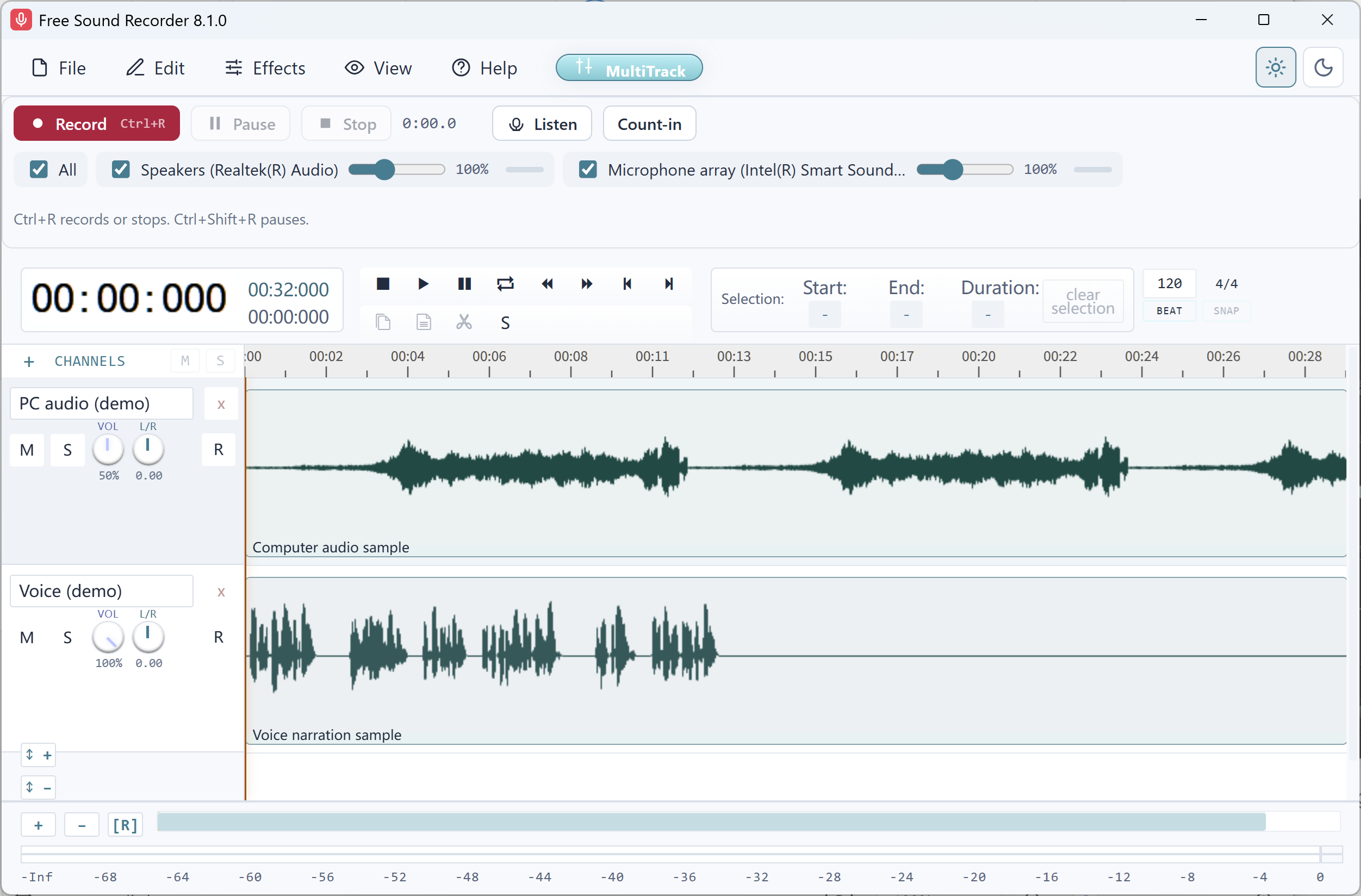
- In the recorder’s source list, select the playback source for the device you can hear. Clear the old playback source. Select your microphone only if you want a separate voice track.
- Start near 100% gain. Play five seconds, press Record for part of the clip and press Stop.
- Play the resulting track. If you also recorded a microphone, use Solo on the playback track to check computer sound by itself.
If the track is still silent
If Windows cannot play through the device, reconnect it and check the output in Windows. If Windows can play through it but it is missing from the source list, reopen the recorder after connecting the device. If a regular local clip works and the original source stays silent, check the original app’s routing and whether you can capture that material.
Once both tracks play, save the editable tracks and export the mix. For help with other sources, choose the correct recording inputs.