Free Sound Recorder

   English English  Deutsch Deutsch

Frequently Asked Questions

For your convenience, a list of frequently asked questions is provided below. Please be sure to review this list, as it is very possible that your question has already been answered here. If the solution you seek is not here, please feel free to contact us.

General Questions

Can I record an Internet broadcast through RealAudio?

Yes.
You can record from virtually any sound source that is audible through the computer speakers, including Internet broadcasts with RealAudio for example.
Just make sure to follow these steps:

  1. First start play-back of the Internet broadcast in the player you are using, like RealPlayer.
  2. Wait for RealPlayer to start play-back. First it will download a couple of seconds of sound, before it starts play-back.
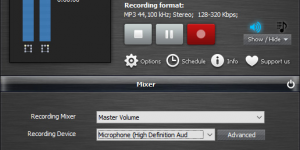
  3. Then start the Free Sound Recorder and select the appropriate sound source.
    The names of the sound sources differ from one system to another, but the sound source for recording RealAudio play-back, is usually named Wave, Stereo Mix, What You Hear, or something in similar wording.
    The Free Sound Recorder will automatically select the appropriate recording quality if needed.
  4. Start recording in the Free Sound Recorder.
    Optionally you can restart play-back in RealPlayer, to record the whole sound clip from the beginning.

Note that on certain computers you cannot change the recording quality to anything other than that of the sound quality of the Internet broadcast.
Also on certain computers you will get an error message in RealPlayer, about not being able to access the sound card, if you started the Free Sound Recorder before starting play-back in the RealAudio player. In that case the selected recording quality in the Free Sound Recorder window does not match that of the Internet broadcast and then RealPlayer cannot access the sound card for play-back. Just follow the steps explained above, to resolve this conflict.


The CD's I create with your recordings play back on my computer, but not on my home or car player. What is wrong?

If the CD's cannot be played back on a regular CD player, then this can have several reasons.

The most common reason is that the CD was not created correctly with your CD-burning software. Most CD players require the CD-recording-session to be closed. For more information on creating standard Audio CD's and CD-recording-sessions, please refer to the manual of your CD-burning software.

Another possibility is that you created a Data CD with the sound files. This kind of CD is not recognized by regular CD players. Make sure you create an Audio CD instead and to "close the session" on the CD.

If none of the above applies, then try burning the CD at a lower speed. Burning at speed 1X instead of any higher speed supported by your CD-burner or CD's, causes a "deeper burn" which may work better on older CD players.

Why is the disk full so quickly?

Sound files are very large files. Specially sound files that are suitable for making an audio CD take a lot of disk space, because they contain the information for two-channel (stereo) sound with a frequency of 44.1 kHz.

For each second of digital sound, you need approximately 172 Kb of free disk space. That is approximately 10 megabyte for each minute.
Please note that the actual amount of required disk space depends on the selected recording quality.
As soon as you have recorded the sound files on an audio CD, you can of course remove the files from disk again.

How to convert my home study courses from tape to CD?

Many home study courses like language courses come with cassette tapes containing audible lesson material. Constantly having to wind and re-wind those tapes to find the right fragment can become very annoying and might even withhold you from completing the course.

Converting those cassette tapes to CD is the solution! On a CD player you can more easily jump to the fragment you need and also makes it easier to replay the same fragment over and over.

Record the tapes using the Free Sound Recorder almost like "record an Internet broadcast". Just choose the right audio source and then click "Record".

How to select other audio source on Windows Vista?

Free Sound Recorder supports for recording audio from Microphone, CD Line, Stereo Mix etc. The Device tab on Free Sound Recorder shows a list of audio source. However, Windows Vista disable some devices of the less frequently used, when you are using Windows Vista, there may only shows 2~3 devices, such as Line In, Microphone, you can't find Stereo Mix, Aux Mix or others.

To show all recording devices on Free Sound Recorder Device list, please do following steps:

  1. Launch Free Sound Recorder. If you have not installed, please click here to download.
  2. Click Volume Control on Device tab. The Windows Sound dialog open.
  3. Right click the recording device on the Recording tab, and then check Show Disabled Device menu item.
  4. Right click the disabled device, and then click the Enable menu item.

Which Audio File Type Shall I Select?

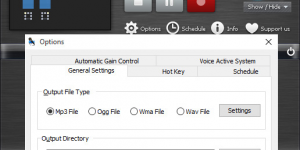
Free Sound Recorder is a direct and real-time sound recording software which offers professional recording features, it supports for the following audio file format:

Wave format
Wave files usually contain uncompressed PCM audio data.

In some cases, it may be compressed PCM data in a format such as ADPCM, GSM or True-Speech.

Wave files end in the 3 letter extension .wav.

MP3 format
MP3 files contain perceptually encoded sound data.

The frequencies that humans cannot perceive are removed, although some audio purists say they can tell the difference between a high bit-rate MP3 and a Wave file.

A typical MP3 is 10 times smaller than an equivalent WAV file.

MP3 files usually end in .mp3. They are also used with .mp1, and .mp2 file extensions.

WMA format
WMA stands for Windows Media Audio. WMA files contain perceptually encoded sound data.

The frequencies that humans cannot perceive are removed, although some audio purists say they can tell the difference between a high bit-rate WMA and a Wave file.

A WMA file can be as much as 20 times smaller than an equivalent WAV file.

Why I can't record anything?

Please set the right recording source, for Recording from Winamp or stream audio from Internet, you must set recording source is "Mono Mixer" or "Stereo Mixer".

Does Free Sound Recorder record from a microphone input?

Free Sound Recorder records anything that goes through the sound card on your PC.

What is the maximum duration for recording with Free Sound Recorder?

We do not recommend making long, continuous recordings to a single audio file. Firstly, there can be a technical limitation to the maximum file size permitted. This is imposed by the file system used on the hard drive. For example, in a FAT32 file system on Windows there is a 4GB limit. However, most computers these days are set up with NTFS file systems and no such limit is imposed.
Secondly, there are a number of practical reasons why files of this size and duration are not helpful. It is very difficult to edit a recording of this size, and the file may in fact be too large to load into sound editing software. Plus if the audio file needs to be sent to a third party - as an email attachment, for example - it will be humungous, and will probably be barred by most mail servers due to its size.

Vista Recording Problems?

We're getting complaints that our recorder doesn't work in Vista. It works but you need to set Vista to use it.

By default, the only recoding input devices are Microphone and Line In which would mean that you can't record a sound played on your computer.

To enable additional inputs, log on with elevated administrator rights and follow these steps.

In the Control Panel Classic View click Sound.

In the Standard View click Hardware and Sound.

Right click on a white space and select Show Disabled Devices from the pop-up menu.

Now you should see all the devices available.
Right click and select Enable for each device that you want to use.

To record sounds being played through a media player select the Stereo Mix control...

Click the Set Default button


You will have to change the default to use other devices as your input source.

Can Free Sound Recorder be used on a 64-bit Windows XP or Vista operating system?

Free Sound Recorder is full compatible with XP or Vista 64-bit.


Download Free Sound Recorder